|
Main Menus
The are two Main Menus available:
 Full Menu
Condensed Menu
|
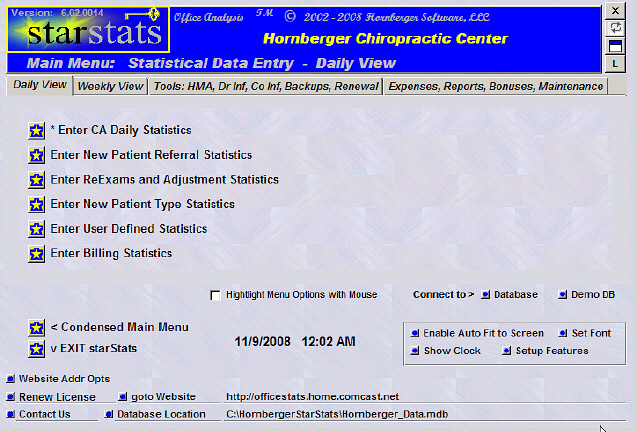
Full Main Menu
Full Main Menu provides access to all options
and functionality.
Menu Options behind the 4 Tabs provide full functionality.
Tab 1: Data Entry Forms which provide Daily Data Entry.
Tab 2: Data Entry Forms which accommodate Data Entry for the entire week on the same
page.
Tab 3 provides standard options and maintenance
utilities.
Tab 4 provides administrative options and other maintenance utilities.
At the bottom right of the menu there is a
sub menu that provide easy and quick access to some common functions.
|
|
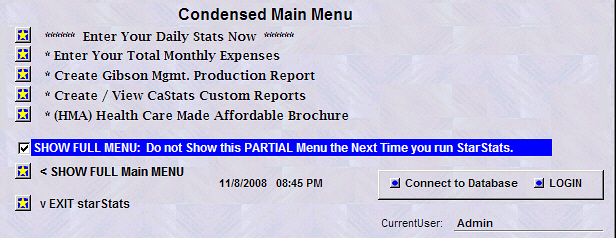
Condensed Main Menu:
Condensed Main Menu is a simplified version that offers
basic Options:
Data Entry, Report Generation, and access
to the HMA (Health Made Affordable Brochure) form.
|
Control the behavior of the Data
Entry Forms.
Enable the different Bonus Types.
Enable Graphing.
Control Database Maintenance Processes.
|
| |
 |
Sample Menus |
|
|
 ...office growth solutions
|
|
|
|
|
The latest Highlights in the StarStats™
Office Analysis Software Program
|
|
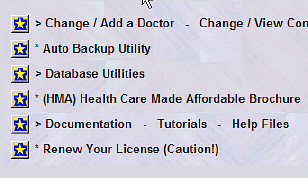
- Add or Change Doctor and Company Information
and Set Application Preferences
- Setup a Backup of the Database when Exiting the
Application
- Create a HMA Brochure
- Documentation Access if available
- HMA Form
- License renewal.
Quick Access Menu at the
bottom right
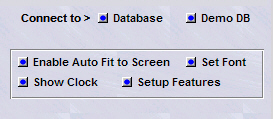
- "Connect to" is a Quick connect to
either the User Database or the Demo Database.
- "Setup Features" Opens the Application preferences Menu allowing
the user
to enable or disable features such as:
Data Entry Features, Bonus and Database Features,
etc...
- "Auto Form Fit" Utility accommodates computers that
operate at high screen resolution settings. This utility will automatically
adjust the form size to fill the screen.
- "Show Clock" turns on/off the clock
seen on the Menu. By clicking on the clock additional controls will appear
that will change the clock font. Click on the
clock again and these controls will disappear.
|
Main Menu - Tab4 (administration
security level)
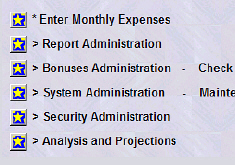
- Enter Monthly Expenses
- Report Utilities
- Create (Gibson) Production Reports
- Create Other Reports and Charts
- Create Practice Analysis and Expenses Report
- Bonus Utilities
- Check and Create Bonus Reports
- Pay Bonuses
- View and Set New Bonus Goals
- View Bonus Activities
- Bonus Setup
- Bonus Logs
- System Utilities
- Conversion Utilities
- Direct Access to Data Tables
- Logs
- Security Administration
- Deny / Grant Access to particular forms, reports and controls
- Logs
|
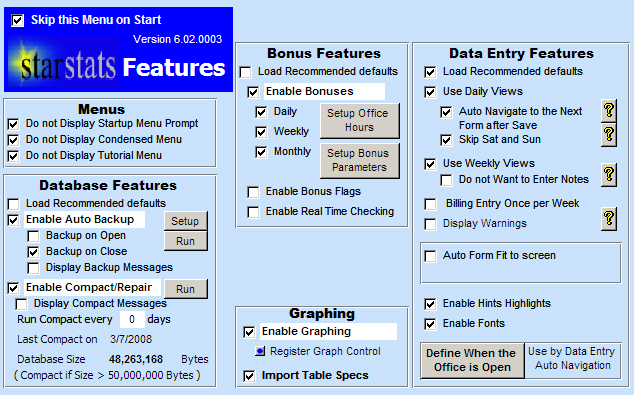
Features
(available from the Main Menu by
clicking on "Setup Features")
Most options are conveniently available at the
time the user is prompted. The option to enable/disable a feature is clearly marked.
StarStats' behavior can be adjusted and tailored as the user becomes more
familiar with the application.
- Auto Backup Utility:
We strongly recommend to always backup your database. We provide a utility that will
automatically backup your database in two modes:
run with notifications and conformations or
run in silent mode.
- Fully customizable
Scheduler for Backup/Compact Process: It is recommended to compact
your database at least every 30 days depending on the usage.
This will keep your database running at optimum performance
levels.
This option can be customized to your specifications.
For example you can set this to every 60 or 90 days or
etc... Nevertheless, the process will be done
automatically upon exiting the application when using the
Exit function on the Main Menu.
- Employee Incentives: If your practice offers
incentives to employee through bonuses, different bonus
types can be enabled.
- Quick Links provide easy
and fast access: There are
also some quick links provided to open the Bonus Setup
Utility and other common functions.
|
- Various Methods are
available for Entering Data: Data Entry methods
are available that will fit your daily office routine
accommodating entering data on a daily schedule or add
data for multiple days.
- Easy Navigation between Data
Entry forms: The entire expanse of statistics are entered among five major data entry forms.
Navigation among these
forms are made easy with a navigation pane or with the auto form navigation utility.
- Auto Form Navigation
Utility: After
entering a subset of stats in one form, the next form will open
automatically. After all the forms were open on that particular day,
the procedure begins again automatically navigating to the next day.
If your practice is not open during the weekends, skip weekends
option can be enabled.
- Convenient Weekly View: A weekly view data
entry form is available for most stats so that you
can enter the same group of statistics for the entire
week saving time by avoiding navigating to other forms.
- Two Methods of Entering Billing Data: Billing
statistics can be enter either on a daily basis or
once per week. In both modes the weekly total is
used in the reports.
|
- Auto Backup
Utility: It is essential that your data gets backup
daily. This sometimes is an arduous task. StarStats
can automatically backup your database when exiting. It
can keep as many backups as you wish but the default is set at
6.
Microsoft recommends
occasionally compact your database to keep it running
at optimum efficiency. In addition StarStats gives
you the option to compact your database providing easy database
maintenance.
|
|
| |
|
StarStats Copyright © 2009 by
Hornberger Software, LLC All Rights Reserved
|
|
|